Slack CRM Integration: CRM Alerts in the Channels Your Team Already Uses
Connect your Slack workspace to KudosCRM over OAuth, then add a Post to Slack step to any automation. Deal wins, new leads and the updates people miss in the notification bell arrive in the channel you choose, without anyone opening the CRM.

The Short Version
What Is the Slack CRM Integration?
The Slack CRM integration connects your Slack workspace to KudosCRM over OAuth so your automations can post CRM signals, a deal won, a new lead, a stage change, to any channel or as a direct message. An admin opens Settings → Marketplace, approves the KudosCRM app in a short popup and runs a connection test.
Post to Slack is an action in Workflows, so any trigger and condition you can build can end in a Slack message, with merge fields like {{deal.title}} filled from the record. Messages a contact posts in your public channels are logged as notes on their timeline.


The Problem
Why Connect Slack to the CRM
Without the integration, CRM activity reaches the team only when someone repeats it in Slack. With it, KudosCRM posts the signal itself.
Without the integration
- Deal wins are announced by hand, or not at all.
- New leads wait until the owner next opens the CRM.
- Updates live in the CRM notification bell, which not everyone watches.
- Alerts for your own process need a developer and a webhook.
How KudosCRM handles it
- A deal-won automation posts to the channel you choose.
- A new-lead automation messages the owner in Slack, with the details filled in from the record.
- Anything worth a ping can go to Slack as well as the notification bell.
- Any workflow can post to Slack as an action, no code needed.
How It Works
The Slack Alert Loop
From authorising the app to a message in a channel, this is the path every alert takes.
Step 1
Authorise
Click Connect on the Slack card and approve the KudosCRM app in your workspace.
Step 2
Add the action
In an automation, add a Post to Slack step and pick the channel or person.
Step 3
Trigger
A deal is won, a lead comes in, or any other workflow trigger fires.
Step 4
Post
KudosCRM posts the message with merge fields filled from the record.
Step 5
Check health
Settings → Connected apps shows status; open Slack to test it or read the sync history.
Alerts in Channels
Deal Wins and New Leads Post to Slack
Build the alert once as an automation: when a deal moves to Won, post to #sales-wins; when a lead is created, message its owner. The channel is set on each action, so every alert goes where it belongs.
- Post to a channel by name or ID, or send a direct message
- Merge fields fill in the deal, lead or contact details
- Setup takes about a minute over OAuth

Workflow Action
Any Workflow Can End in a Slack Message
Automations in KudosCRM are no-code workflows: pick a trigger, add conditions, then add actions. Once Slack is connected, Post to Slack is one of those actions, with a variable picker for record details, so alerts follow your process.
- Trigger, conditions and actions in a structured step-by-step builder
- Merge variables fill in the deal, lead or contact details
- Each workflow has a status toggle, so you can see what is live

Secure by Default
OAuth Connection, Encrypted Token, One-Click Test
Slack connects through an OAuth popup, so nobody pastes a token by hand, and the token is encrypted at rest. Settings → Connected apps shows the connection's status; open it to run a test, reconnect, read the sync history or disconnect.
- Test connection and Reconnect from the management sheet
- Sync history shows what the connection sent and received
- Disconnect any time, no support ticket needed

What's in the Box
What the Slack Integration Includes Today
Live capabilities are listed plainly. Anything not yet shipped carries a label.
Posts
- Deal-won alerts from an automation
- New-lead alerts from an automation
- Post to a channel or a direct message
- Merge fields from the record
Automation
- Post to Slack workflow action
- Any trigger and condition
- Contact messages in public channels logged on the timeline
Admin
- OAuth popup, about a minute
- Status, test connection and sync history
- Token encrypted at rest
- Disconnect any time
See It in the Product
How Do I Connect Slack to KudosCRM?
Three screens, about a minute. You need a KudosCRM admin login and permission to install apps in your Slack workspace.
- 1
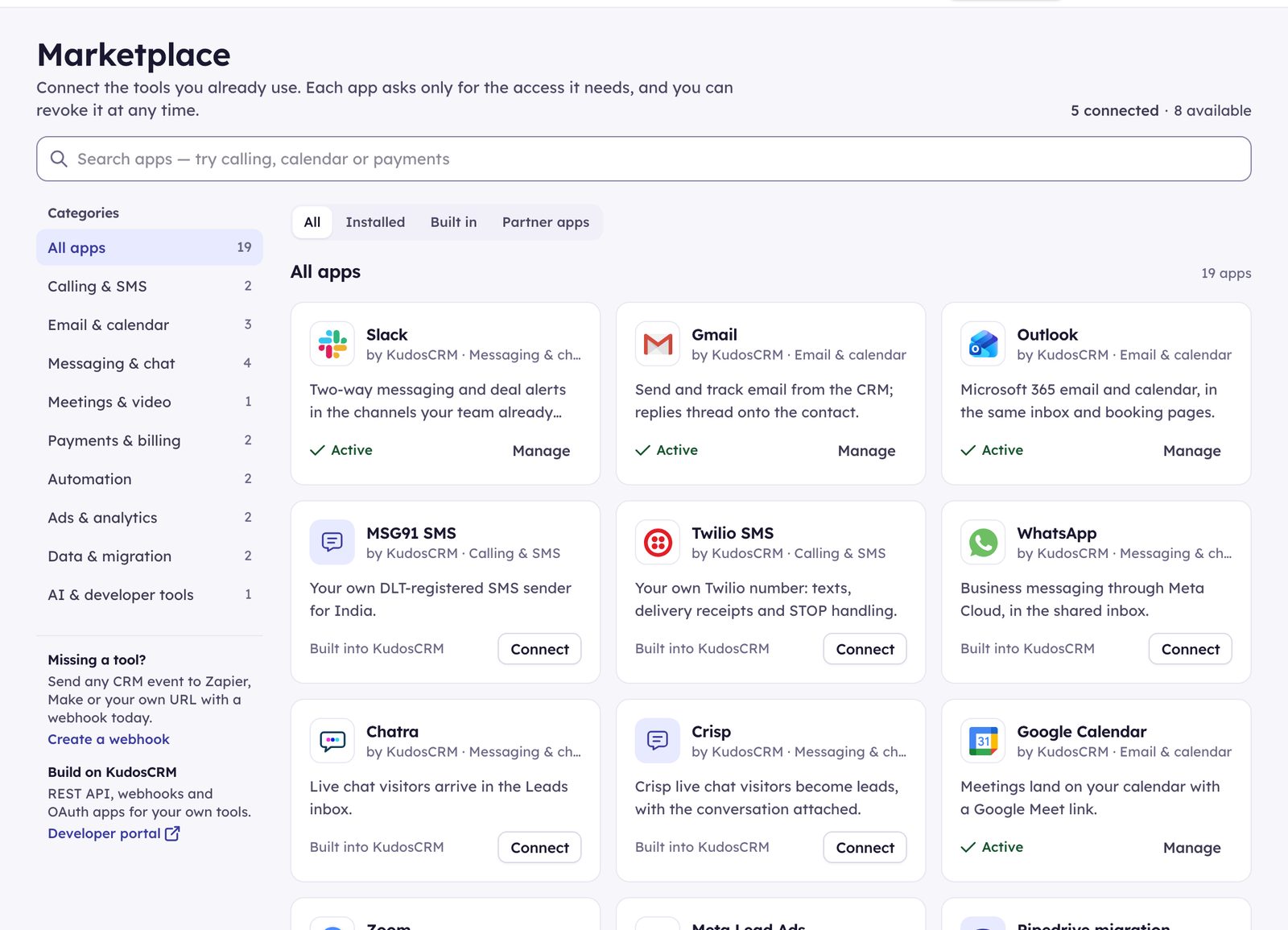
Open Settings → Marketplace
Click Connect on the Slack card. A short OAuth popup opens.
- 2
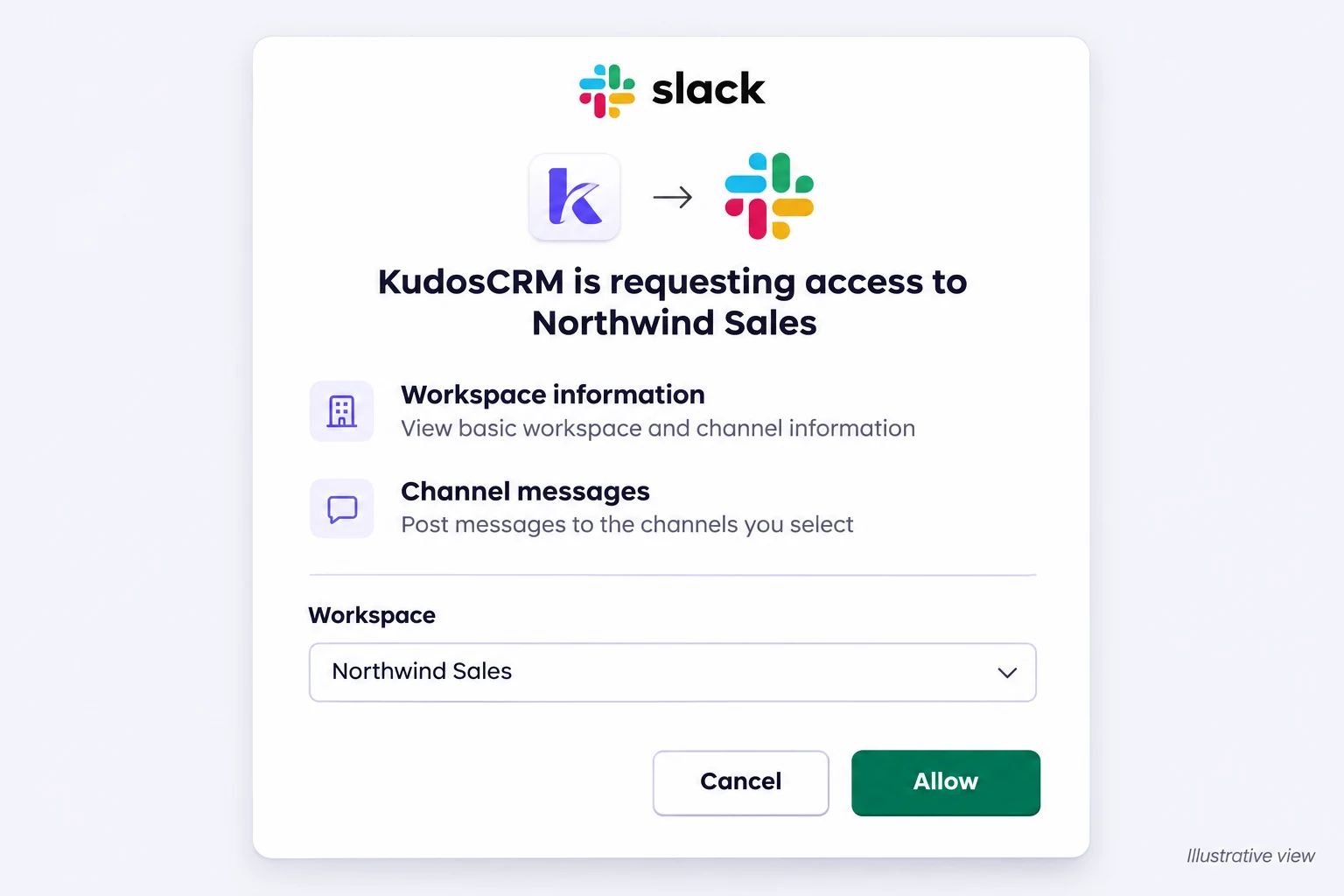
Authorise KudosCRM in your Slack workspace
Approve the app on Slack's consent screen.
- 3
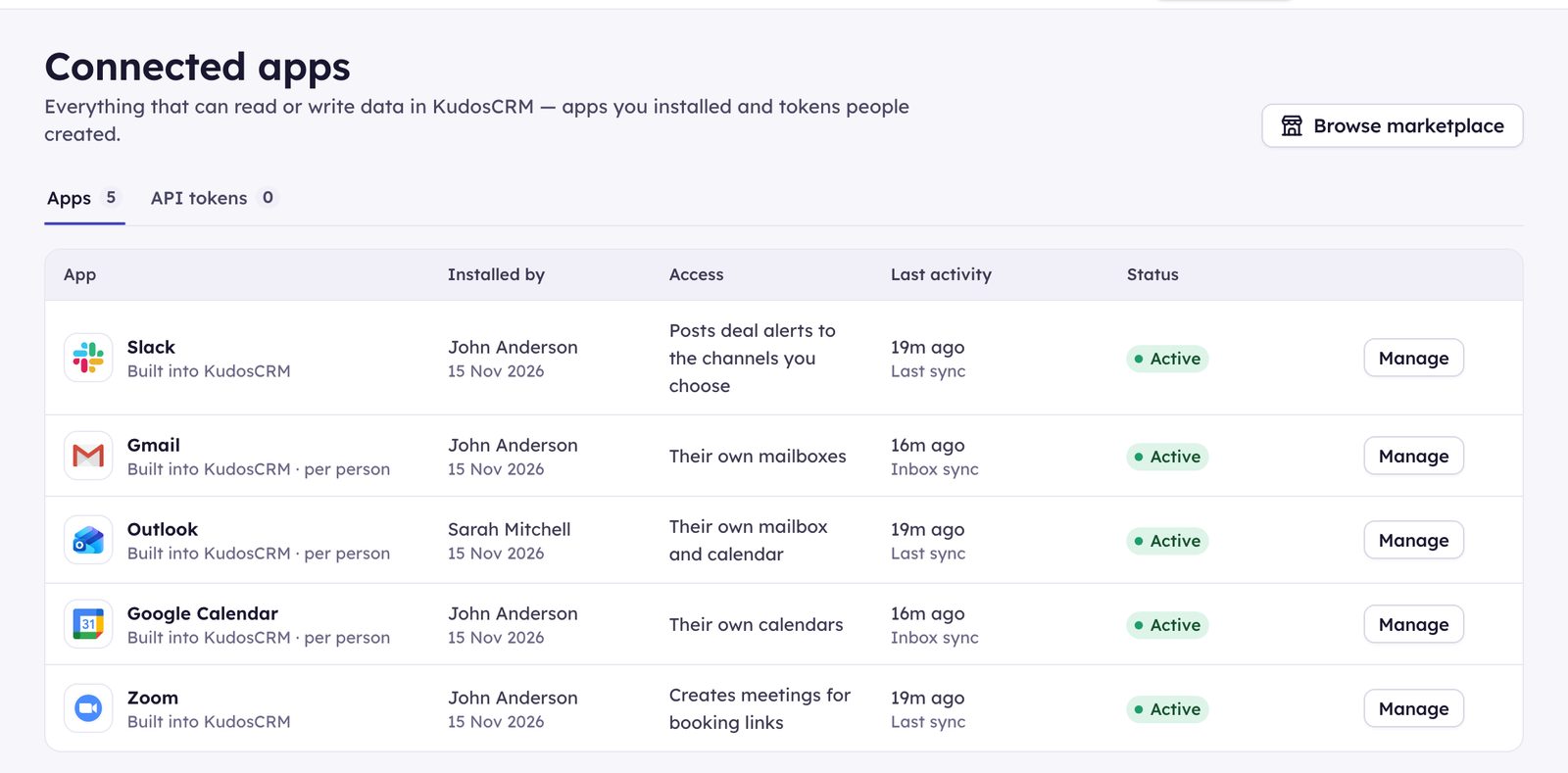
Finish the wizard and test
The popup ends with a connection test. Then add a Post to Slack step to an automation and choose its channel.


Works Well With
Pair Slack With Email and Calendar
 Gmail
 Outlook
 Zoom
 Google Calendar
Need alerts somewhere other than Slack? Outbound webhooks deliver CRM events to any URL with a signed payload.
FAQ
Frequently Asked Questions
Start free today
Connect Slack to Your CRM in About a Minute
Authorise the app, add a Post to Slack step, and the next deal you close announces itself.