Google Calendar CRM Integration: Every Meeting on Your Calendar
Connect Google Calendar through the same Google sign-in you use for Gmail. Meetings you create or reschedule in KudosCRM land on your Google Calendar, booking pages skip the times you're already busy, and bookings set to Google Meet get a link, so scheduling lives on the contact or deal record instead of a separate tab.

The Short Version
What Is the Google Calendar CRM Integration?
The Google Calendar CRM integration puts KudosCRM Meetings on your Google Calendar. Create, move or cancel a meeting in KudosCRM and your primary Google Calendar follows, while booking pages read your Google free/busy so they never offer a slot you've already filled. Bookings set to Google Meet get a Meet link on the confirmation and on the record timeline.
It rides the Google connection you already made for Gmail, so there is no second sign-in. Meetings, internal and public-link bookings alike, sit on one calendar in KudosCRM with a list toggle, and each one can be linked to its contact or deal so it shows up in that record's history.

The Problem
Why Connect Google Calendar to the CRM
Without it, meetings live in two places and one of them is always out of date. With it, what you book in the CRM is on your calendar, and your calendar decides what the booking page offers.
Without the integration
- Meetings booked in the CRM have to be copied into Google Calendar by hand.
- Booking pages offer slots that Google Calendar already shows as busy.
- Video links are pasted into invites one at a time.
- The deal record has no trace of the meeting that moved it.
How KudosCRM handles it
- Meetings created in KudosCRM appear on Google Calendar automatically.
- Booking pages check your Google Calendar and hide busy times.
- Bookings set to Google Meet get a link on the confirmation and timeline.
- Meetings link to the contact or deal, so the history is on the record.
How It Works
The Calendar Sync Loop
From Google sign-in to a meeting on the record, this is the path every event takes.
Step 1
Connect Google
Sign in with Google once in Settings → Marketplace. Gmail and Calendar share it.
Step 2
Allow calendar
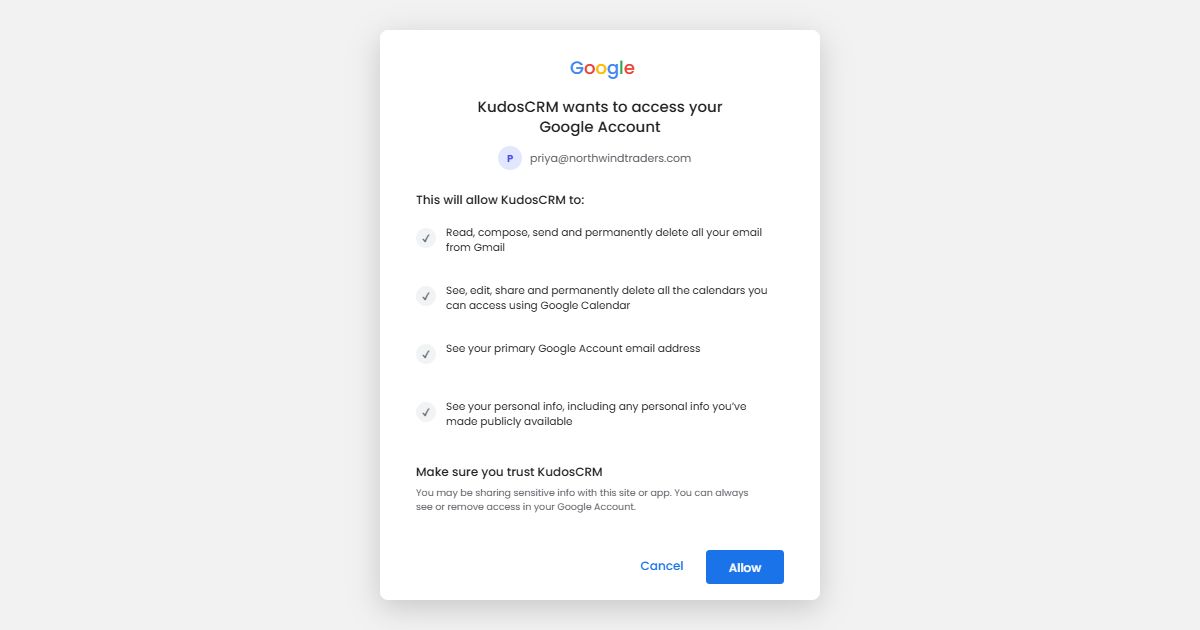
Google's consent screen covers mail and calendar in one go.
Step 3
Sync
Meetings created, moved or cancelled in KudosCRM update your Google Calendar.
Step 4
Add a Meet link
Bookings set to Google Meet get a link on the confirmation and timeline.
Step 5
Log the outcome
After the meeting, record the outcome and spin up follow-up tasks on the record.
Calendar Sync
Meetings You Book in KudosCRM Land on Google Calendar
Drag on the KudosCRM Meetings calendar to create a meeting and it appears on your primary Google Calendar; reschedule or cancel it in KudosCRM and Google follows. Internal meetings and public booking-link bookings share the same surface, so one calendar in the CRM shows everything you book.
- Create, reschedule and cancel all reach Google Calendar
- Booking pages read your Google free/busy to skip taken slots
- Toggle between calendar and list on the same Meetings page

Booking Pages
Public Booking Links That Respect Your Calendar
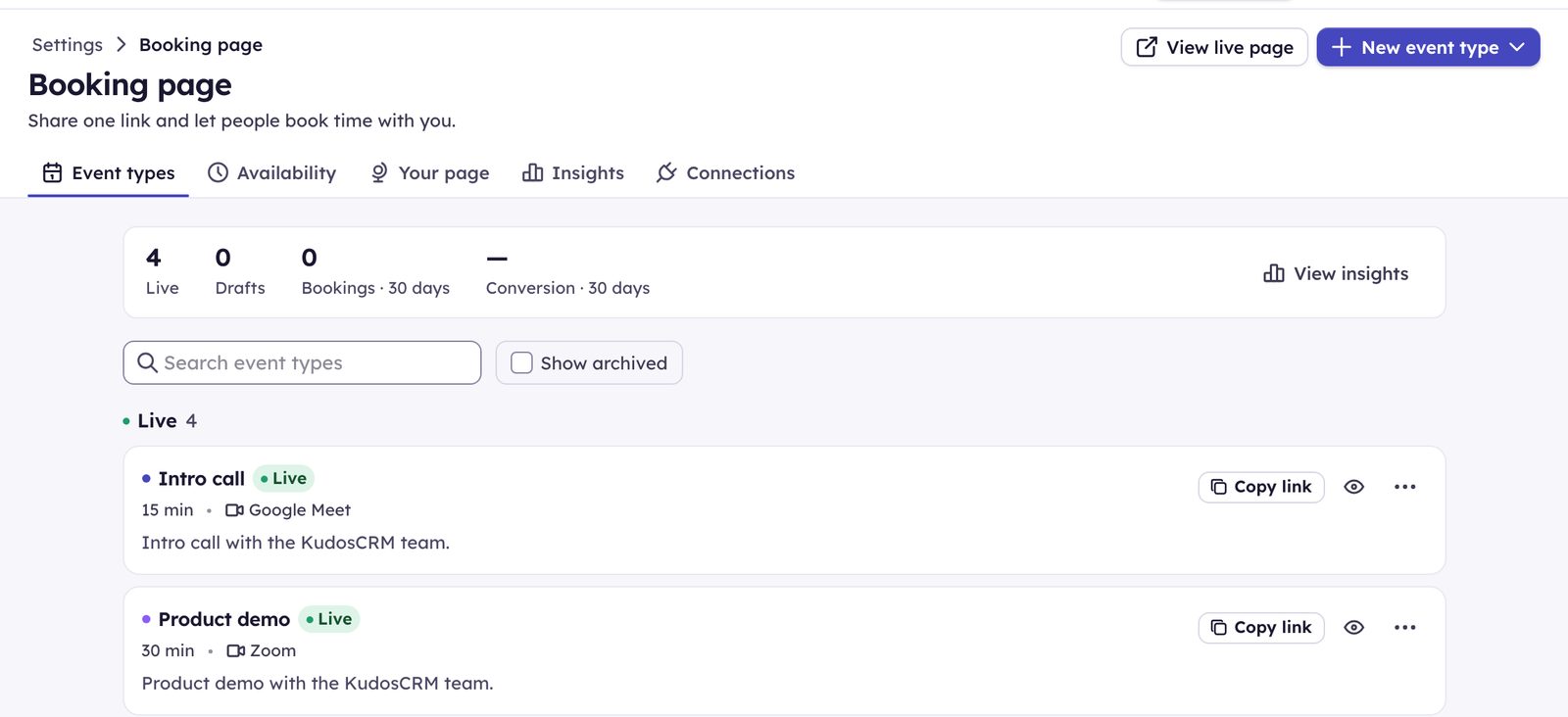
Under Settings → Scheduling you create event types, set weekly availability with date overrides, and share your public booking page. Availability checks your Google Calendar, and each event type picks its location: Google Meet, Zoom, Microsoft Teams, phone or in person. Set it to Google Meet and every booking arrives with a Meet link.
- Event types, Availability, Your page and Insights tabs
- Insights shows which event types get booked
- Prefer Zoom? The Zoom integration attaches a Zoom link instead

On the Record
Every Meeting Linked to Its Contact or Deal
Open any meeting's detail page to record the outcome and create follow-up tasks, which land in the Tasks workspace like any other task. Link the meeting to its contact or deal and it appears in that record's history alongside email and notes.
- Outcome and follow-up tasks captured from the meeting detail page
- Kudos AI suggests follow-up tasks from your meeting notes
- Settings → Connected apps shows status; disconnect any time, no ticket needed

What's in the Box
What the Google Calendar Integration Includes Today
Live capabilities are listed plainly. Anything not yet shipped carries a label.
Sync
- KudosCRM meetings added to Google Calendar
- Reschedules and cancellations follow
- Busy times respected on booking pages
- One Google sign-in shared with Gmail
Meetings & booking
- Calendar and list views on one page
- Drag to create, drag to reschedule
- Event types, availability and date overrides
- Google Meet, Zoom or Teams link per event type
Admin
- OAuth, about 2 minutes to connect
- Tokens encrypted at rest
- Status, test connection and sync history
- Edits made in Google Calendar syncing backNot yet
See It in the Product
How Do I Connect Google Calendar to KudosCRM?
Three screens, about two minutes. If Gmail is already connected, calendar access is already granted and you can skip to step three.
- 1
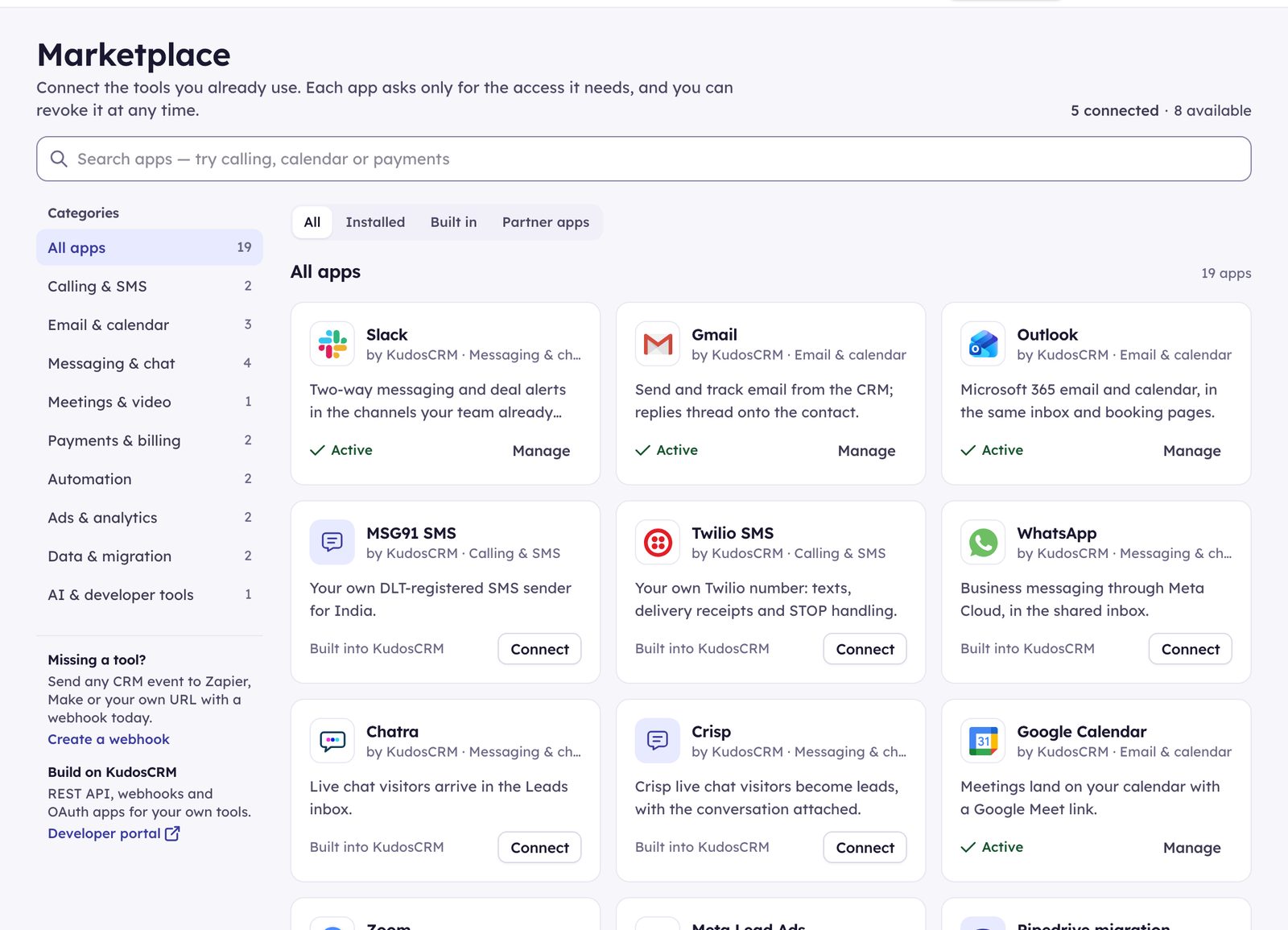
Connect Google in Settings → Marketplace
Click Connect on the Gmail / Google card. Skip this if Gmail is already connected.
- 2
Allow mail and calendar access
Google's consent screen lists calendar alongside email. Allow and the window closes.
- 3
Choose Google Meet on your event types
In Settings → Scheduling, set an event type's location to Google Meet. New meetings now reach your calendar.


Works Well With
Pair Google Calendar With Video and Email
 Zoom
 Gmail
 Outlook
 Slack
On Microsoft 365? Event types set to Microsoft Teams get a Teams link through the Outlook integration.
FAQ
Frequently Asked Questions
Start free today
Connect Google Calendar to Your CRM in About Two Minutes
Sign in with Google, allow calendar access, and your next booking lands on your calendar and the record with a Meet link.