Outlook CRM Integration: Every Customer Email on the Right Record
Connect a Microsoft 365 or Outlook.com mailbox to KudosCRM with a Microsoft sign-in. Sent and received email is matched to the contact and deal it belongs to and shown on their timeline, and your sequences go out from the address customers already know.

The Short Version
What Is the Outlook CRM Integration?
The Outlook CRM integration links a Microsoft 365 or Outlook.com mailbox to KudosCRM so that email with customers is logged on the matching contact and deal automatically. Each rep connects their own mailbox through Microsoft's sign-in screen; KudosCRM stores an encrypted token, never the password.
The same connection is what email sequences and one-off sends use, so follow-ups leave from your real Outlook address and replies come back to you. It also gives meetings set to Microsoft Teams a Teams link automatically.


The Problem
Email Lives in One Inbox, the Deal Lives Somewhere Else
Most teams on Microsoft 365 still forward threads, paste summaries into notes, or ask a colleague what the customer said. The Outlook integration removes that step.
Without the integration
- Customer replies sit in one rep's Outlook. Cover for them and you start from zero.
- Reps forward or BCC emails into the CRM, and forget half of them.
- Follow-up tools send from a generic relay address, so replies land in the wrong place.
- Managers read deal notes that say "emailed them" with no thread to check.
How KudosCRM handles it
- Sent and received Outlook email is matched to the contact and deal and shown on the timeline.
- Nothing to forward. Each rep connects once with a Microsoft sign-in.
- Sequences and one-off sends go through your real mailbox and appear in your Sent folder.
- The full thread is on the record, so "emailed them" becomes a conversation anyone can read.
How It Works
The Outlook Email Loop
From sign-in to a logged conversation, this is the path every message takes.
Step 1
Connect
Click Connect and follow the 5-step wizard: What we'll do, Permissions, Sync preferences, Test, All set.
Step 2
Match
Sender and recipient addresses are matched to contacts by email.
Step 3
Log
Sent and received email appears on the timeline, grouped by thread.
Step 4
Send
Replies and sequences leave from the same Outlook address.
Step 5
Act
Workflows react: post to Slack, create a task, move the deal.
Email on the Record
Every Outlook Thread Shows Up on the Contact and Deal
Messages to and from a known contact appear on their timeline, grouped into threads rather than scattered as separate activities. A reply to an email you sent from a deal files back onto that deal.
- Contact matching by email address; opens, clicks and replies feed email tracking on the same record
- Your Outlook folders and rules stay exactly as they are
- Works for Microsoft 365 work accounts and personal Outlook.com

Sign in With Microsoft
OAuth Connection, No API Keys and No Stored Password
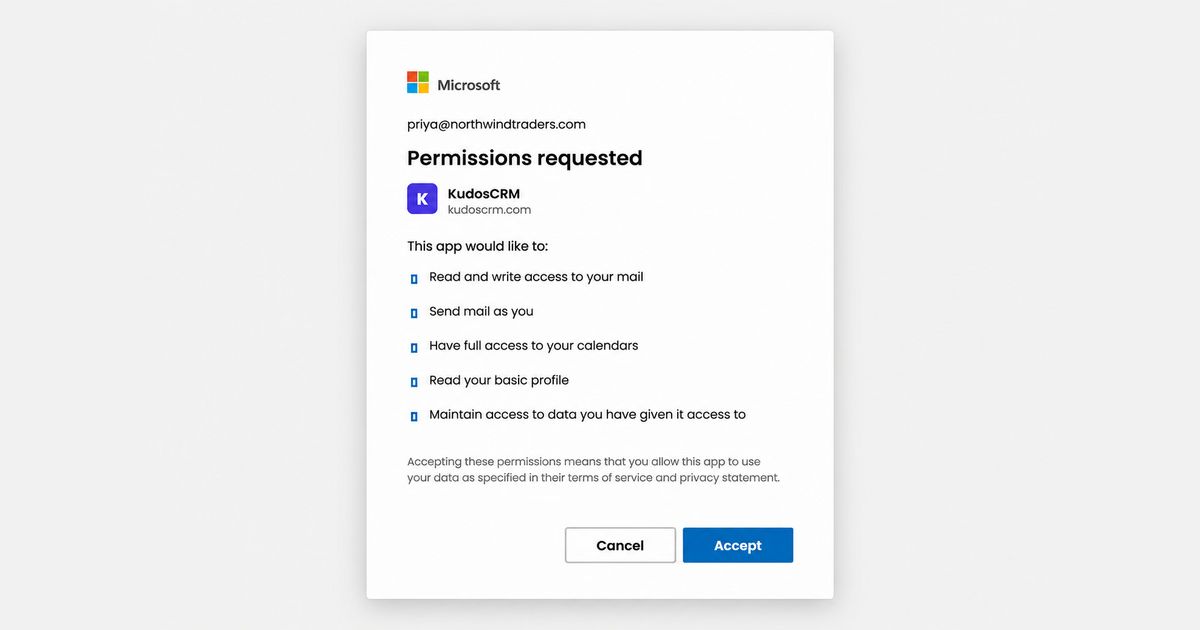
Click Connect on the Outlook card and Microsoft's own consent screen opens. KudosCRM receives a scoped token that is encrypted at rest and isolated to your workspace. The connection runs through Microsoft Graph with a refresh token, and you can disconnect from Settings or from your Microsoft account.
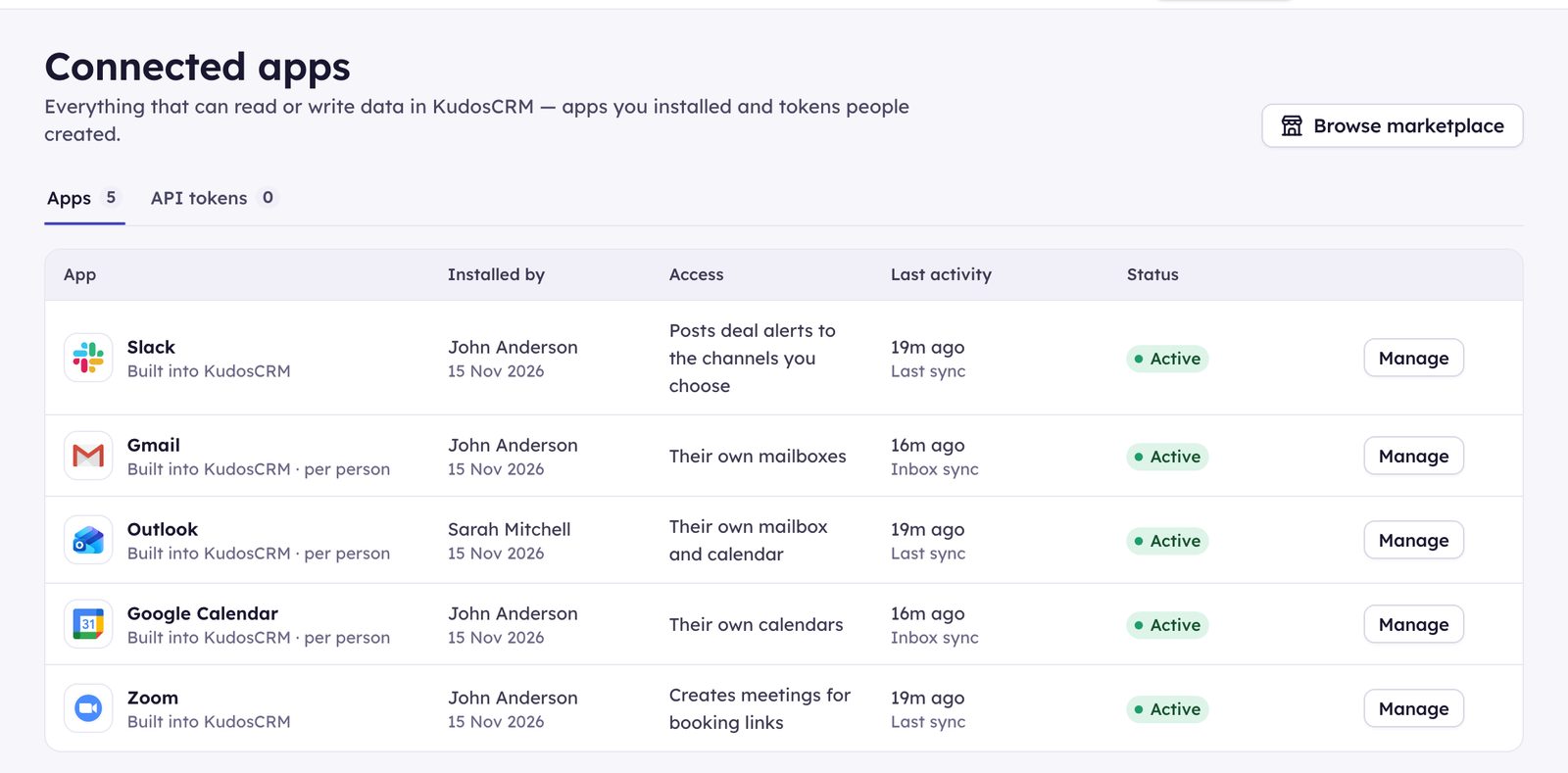
- Settings → Connected apps shows the connection's status
- Test the connection, reconnect or read its sync history from the same sheet
- No support ticket needed to unplug a mailbox

Send From Your Mailbox
Sequences and Replies Leave From Your Real Outlook Address
One-off emails and multi-step sequences send through the connected mailbox, so they sit in your Sent folder and replies come back to you.
- Rich-text signature from Email settings rides along on every send
- Template performance over 7, 30 or 90 days in Email settings
- Daily sending quota shown per mailbox in Email settings

What's in the Box
What the Outlook Integration Includes Today
Live capabilities are listed plainly. Anything not yet shipped carries a label.
- Sent and received email on the contact timeline
- Thread grouping
- Contact matching by email address
- Opens, clicks and replies in email tracking
Sending
- One-off sends from your Outlook address
- Email sequences through the connected mailbox
- Rich-text signature
- Teams link on meetings set to Microsoft Teams
Admin
- OAuth tokens encrypted at rest
- Status, test connection and sync history
- Sending domain verified in Email settings
- Two-way Outlook calendar syncOn the roadmap
Admin View
Where Do Connected Mailboxes Live in Settings?
Settings → Email has two tabs. Accounts lists every connected mailbox with its status, daily sending quota and signature, and shows a Reconnect button when a mailbox needs attention. Sending & domains is where an admin verifies the sending domain so campaigns reach inboxes.
Template performance over 7, 30 or 90 days sits on the Accounts side too, so you can see which emails earn opens, clicks and replies from your Outlook address.

See It in the Product
How to Connect Outlook to KudosCRM?
Three screens, about two minutes. You need a KudosCRM login and a Microsoft account; admin rights are not needed to connect your own mailbox.
- 1
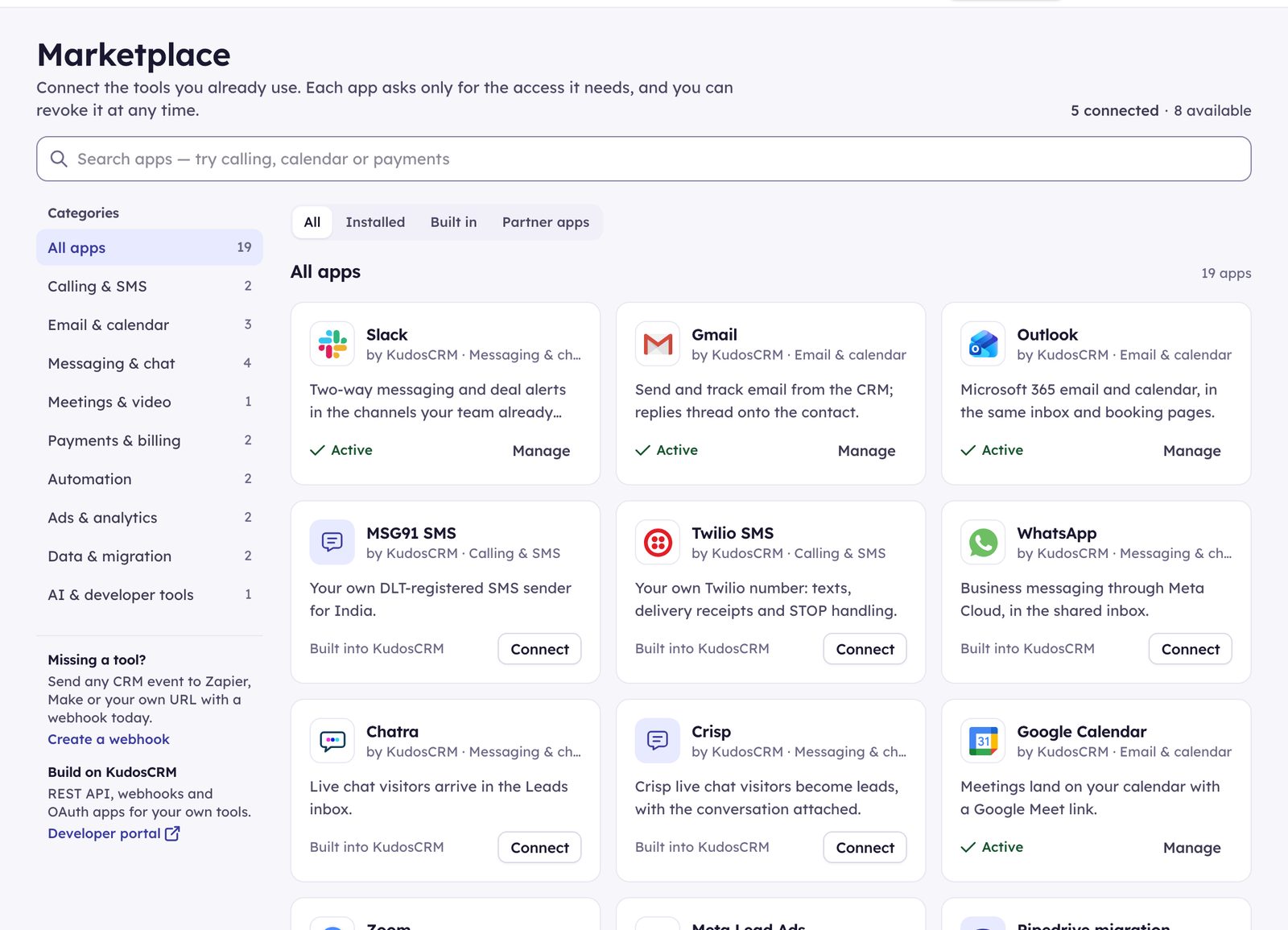
Open Settings → Marketplace
Live tools show a Connect button. Click it on the Outlook card.
- 2
Sign in with Microsoft and approve
Microsoft's consent screen lists the permissions. Approve and the window closes.
- 3
Check it in Connected apps
Outlook shows as connected. Open it to test the connection or read the first sync.


Works Well With
Pair Outlook With Meetings and Team Alerts
 Zoom
 Slack
 Google Calendar
 Gmail
On Google Workspace instead? The Gmail CRM integration works the same way.
FAQ
Frequently Asked Questions
Start free today
Connect Outlook to Your CRM in About Two Minutes
Sign in with Microsoft, approve access, and your next customer email lands on the right record. The Free plan includes one inbox.